
Default Cache Behaviour
The default behaviour for Altitude is that requests are not cached by default. We want to be as flexible as possible and creating the assumption that responses can be cachable can lead to dangerous behaviour, especially when sensitive data is being returned.
SSR Caching
Cache-Control Header
You can override our default behaviour by adding Cache-Control headers in the responses of your functions.
There are three types of cache controls headers you can add to specify how caching behaves for your functions.
All times for Cache-Control headers are to be given in seconds. For more information regarding this header, please see the MDN Cache-Control Web Docs.
1. Max Age
Adding max-age to the Cache-Control header will indicate a time for the customers browser to store the response.
2. Shared Cache Max Age
Adding s-maxage to the Cache-Control header will indicate a time for our shared cache on the edge to store the response.
Note: This should not be returned on personalised pages as other users have access to this cache.
3. Stale While Revalidate
Adding stale-while-revalidate to the Cache-Control header will indicate a time for the users browser to serve stale data
if the other caches are expired. If stale data is served it will then refresh the cache in the backgroud, so the next request
has fresh data.
Example
If the following headers were added to the response of an SSR function:
Cache-Control: max-age=120; s-maxage=300; stale-while-revalidate=900
This will cache requests in the users browser for 2 minutes, we will cache them in the edge for 5 minutes and for 15 minutes after the cache expires, we will serve stale data whilst in the background we will refresh the cache.
Cache Configuration
Within Altitude, we give you the ability to fully customise your caching experience. You can specify custom caching length and cache keys on specific paths on your site.
A cache key serves as a unique identifier for each requested resource, and can contain information such as HTTP headers and cookies. It enables efficient storage and retrieval of cached content, optimizing delivery speed. By default the cache key only contains the host, path, query strings and the Accept-Encoding header however, on Altitude we maintain the ability to add additional information to it.
For example, if your site contains localised content based upon a locale cookie, we can pass this cookie into the cache key so that each locale maintains different cached responses and there can be no bleed.
An example of an Altitude.yaml file with caching enabled is below. For more information on the configuration, see the edge configuration.
version: v2.1
provider: cloudflare
routes:
  # Add routes here
cache:
  - pathRules:
      anyMatch:
        - /foo**
    ttlSeconds: 100
  - pathRules:
      anyMatch:
        - /foo**
      noneMatch:
        - /foo/bar**
    key:
      headers:
        - X-Foo
The result of adding this cache would be:
- For any path with a prefix
/foo, you would have a cache-control header ofmax-age=100. - For any path with a prefix
/fooexcluding paths with a prefix/foo/bar, you would be able to differ your cache by changing theX-Foorequest header. - For any other paths, the default settings remain.
Cache Purging
Cache purging allows you to immediately update content delivered to users when you make changes to your site.
CDN Purging
CDN cache purging can now be performed using the API endpoint POST sites/:siteId/domain/purge-cache with the body parameters domainName, purgeType, key, and allPathWildcards.
Below is a detailed explanation of all the body parameters expected by the endpoint:
domainName
The domain you want to purge, for example, www.foobar.com.
purgeType
This is an enum that accepts one of the following values:
path: Allows you to purge a specific path.surrogate-key: Allows you to purge a specific surrogate key returned by your site.all: Purges all paths on the domain.
key
This field depends on the value selected for field purgeType.
For purgeType:
path: The key should be the path you want to purge.surrogate-key: The key should be the surrogate key.all: The key field is not needed since it purges all paths.
allPathWildcards
When path is selected as the purgeType, setting this to true will purge all paths with the key as the prefix of the path.
CURL request
An example of how the curl would look like for cache purging:
Please follow the guide How to use Altitude API to get your bearer token.
curl -i --location 'https://api.platform.thgaltitude.com/v1/sites/:siteId/domain/purge-cache' --header 'Accept: application/json' --header 'Content-Type: application/json' --header "Authorization: Bearer $token" --data '{"domainName": "www.foo.com", "purgeType": "path", "key": "/bar", "allPathWildcards": true}'Worker Purging
Worker cache purging allows you to clear cached content stored in the worker layer of your application. Unlike CDN cache purging which clears content at the edge, worker cache purging targets the application-level cache that is created using the Cache API (e.g., cache.put() and cache.match() methods). This is particularly useful when you need to invalidate cached API responses, header/footer content, or other dynamically generated data that is stored using the worker Cache API.
Worker cache purging can be performed using the API endpoint POST sites/:siteId/worker-purge-cache with the body parameter purgeType.
Setting Up Cache Tags
Before you can purge worker cache, you need to add cache tags to your responses.
Note: If you are using
@thg-altitude/astro-integration >= 3.1.0,Cache-Tagheaders are set automatically when callingcache.set(). You no longer need to construct them manually — pass an optionalcacheTagstring as the 4th argument and the integration will prependALTITUDE_SITE_IDfor you.
Using @thg-altitude/astro-integration >= 3.1.0:
Tag the response with the site ID only (enables site-wide purging):
await Astro.locals.altitude.cache.set(cacheKey, response.clone(), { expiry: 600 });
// Cache-Tag is automatically set to: ${ALTITUDE_SITE_ID}
Tag the response with a specific identifier (enables targeted purging):
await Astro.locals.altitude.cache.set(cacheKey, response.clone(), { expiry: 600 }, 'headerfooter');
// Cache-Tag is automatically set to: ${ALTITUDE_SITE_ID}, ${ALTITUDE_SITE_ID}-headerfooter
Using @thg-altitude/astro-integration < 3.1.0 (manual approach):
Cache tags are set using the Cache-Tag header and should include your Altitude site ID as a prefix. ALTITUDE_SITE_ID will be provided as an environment variable.
// Fetch your content
const response = await fetchHeaderFooterContent();

// Clone the response to modify headers
const cachedResponse = new Response(response.body, response);

// Add cache tags - include site ID and specific identifier
cachedResponse.headers.append(
  'Cache-Tag',
  `${import.meta.env.ALTITUDE_SITE_ID},${import.meta.env.ALTITUDE_SITE_ID}-headerfooter`
);

// Store in cache with expiry
await Astro.locals.altitude.cache.set(cacheKey, cachedResponse.clone(), {
  expiry: 600
});
Cache Tag Format:
- For specific groups:
${SITE_ID}-identifier(e.g.,12345-headerfooter,12345-products) - Multiple tags can be comma-separated:
${SITE_ID},${SITE_ID}-headerfooter
Below is a detailed explanation of the body parameters expected by the endpoint:
purgeType
This is an enum that accepts one of the following values:
site: Purges all worker cache entries for the site.tags: Purges worker cache entries that match specific cache tags.
tags
This field is required when purgeType is set to tags.
- When
purgeTypeistags: The tags should be an array of cache tag identifiers you want to purge. Altitude site ID is automatically prepended to each tag, so you only need to provide the identifier (e.g.,headerfooterrather than12345-headerfooter). Cache tags allow you to group related cache entries together and purge them as a group. - When
purgeTypeissite: The tags field is not required.
CURL request
Examples of how the curl requests would look like for worker cache purging:
Please follow the guide How to use Altitude API to get your bearer token.
Example 1: Purging all worker cache entries for the site:
curl -i --location 'https://api.platform.thgaltitude.com/v1/sites/:siteId/worker-purge-cache' \
  --header 'Accept: application/json' \
  --header 'Content-Type: application/json' \
  --header "Authorization: Bearer $token" \
  --data '{"purgeType": "site"}'
Example 2: Purging worker cache entries by specific tags:
curl -i --location 'https://api.platform.thgaltitude.com/v1/sites/:siteId/worker-purge-cache' \
  --header 'Accept: application/json' \
  --header 'Content-Type: application/json' \
  --header "Authorization: Bearer $token" \
  --data '{"purgeType": "tags", "tags": ["headerfooter", "products"]}'
Common Use Cases for Worker Cache Purging
Purging all site cache:
- Use
purgeType: "site"to clear all worker cache entries for your site
Clearing header/footer cache:
- Tag header/footer fragments with identifiers like
headerfooter - Purge these tags when navigation or branding updates occur
- Example:
purgeType: "tags",tags: ["headerfooter"]
Note: Worker cache purging is independent from CDN cache purging. If you’re using both caching layers, you may need to purge both to ensure content is fully updated across your application.
Purging via Altitude UI
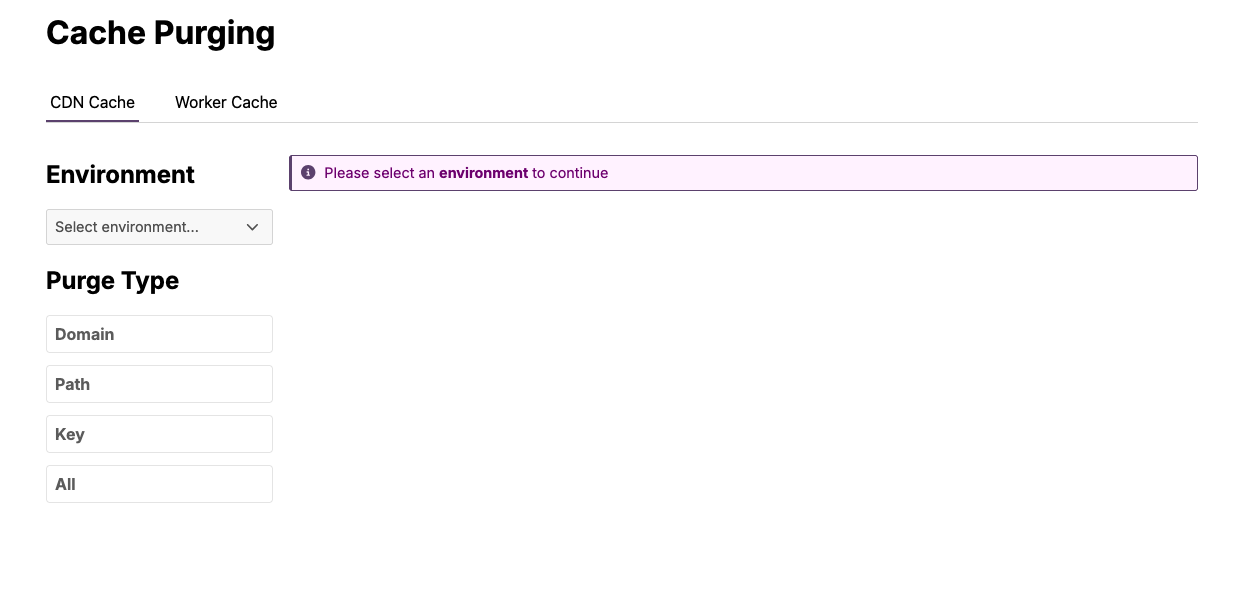
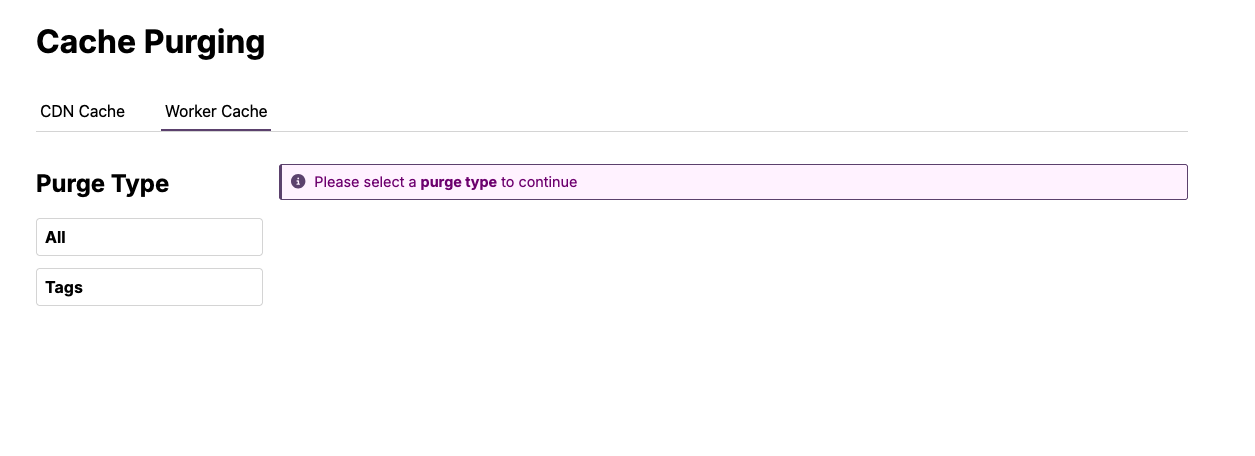
Cache purging can also be requested via the Altitude UI, which provides separate tabs for CDN Cache and Worker Cache purging:
CDN Cache Tab
- Supports purge types:
domain,path,key, andall - Requires environment selection
Worker Cache Tab
- Supports purge types:
allandtags - Purge all worker cache entries for the site, or selectively purge by cache tags
Request Collapsing
You should exercise caution if you are serving personalised pages to make sure that request collapsing doesn’t cause personalised responses to be served to the wrong customers. Note that this is different from caching, and can apply even if Cache-Control is set to no-cache, no-store.
Request collapsing is a performance optimisation to reduce origin load when multiple customers are asking for the same resource at the same time. Fastly groups together multiple incoming requests into a single origin request, then serves that one response to multiple customers. The diagram below shows the three opportunities in the request flow for this to happen.
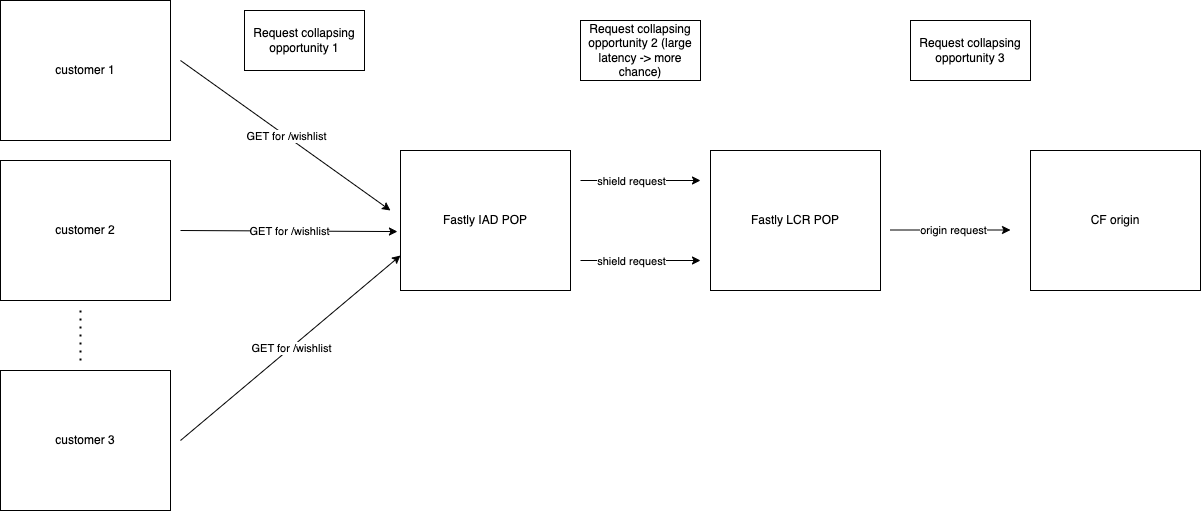
Request collapsing will only happen on GETs where all the incoming requests share the same cache key.
To disable this behaviour for a particular path, you should:
- add a VCL snippet in your altitude yaml to disable caching (which also disables request collapsing)
content: | if (req.url.path == "/personalised/") { return(pass); } type: recv priority: 100 - ensure that you add the
privatedirective to theCache-Controlheader on the response.
To read more about this, see here.