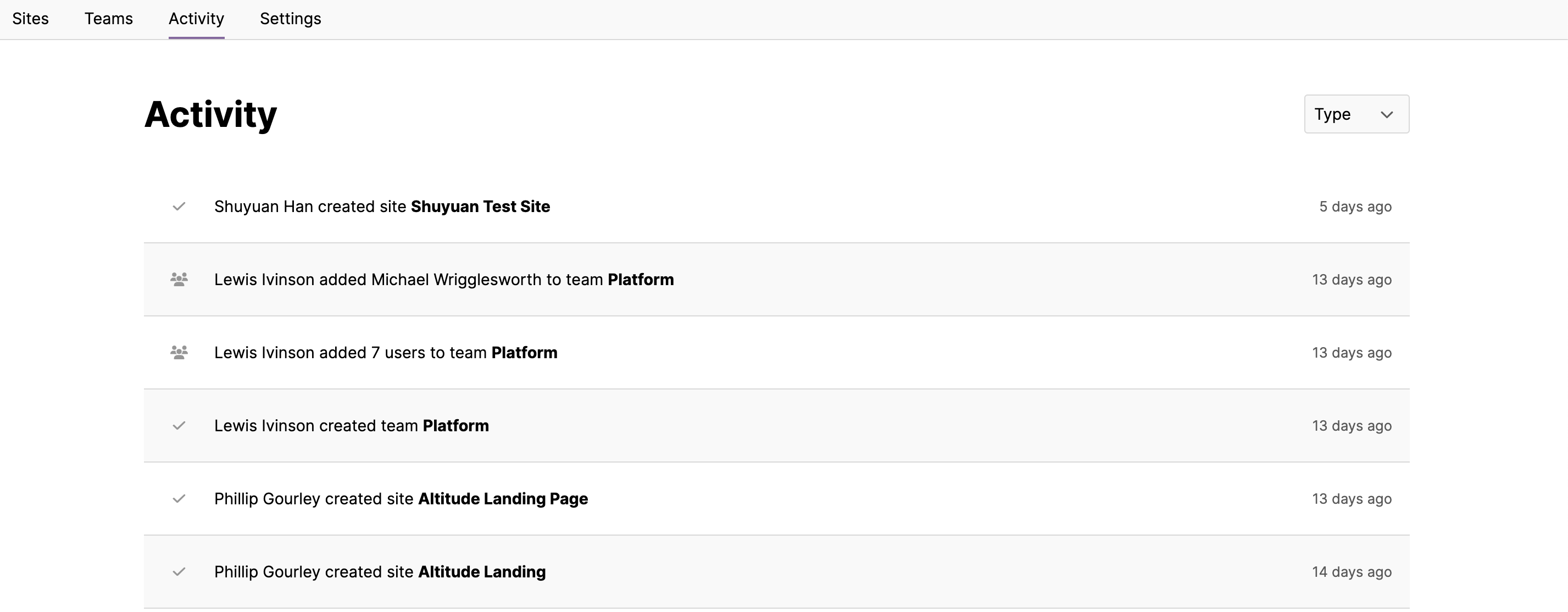
A guide to managing your site day to day, including monitoring deployments and managing site settings.
Deployments
You can deploy a site from its individual site page. Alternatively, you can deploy a site from using our CLI, the details of which can be found here.
Deploying a site
There are three different pathways you can follow when conducting a site deployment. Deploying to an environment using the branch name, deploying to an existing environment, or deploying to a new custom environment.
Deploying a site using the branch name
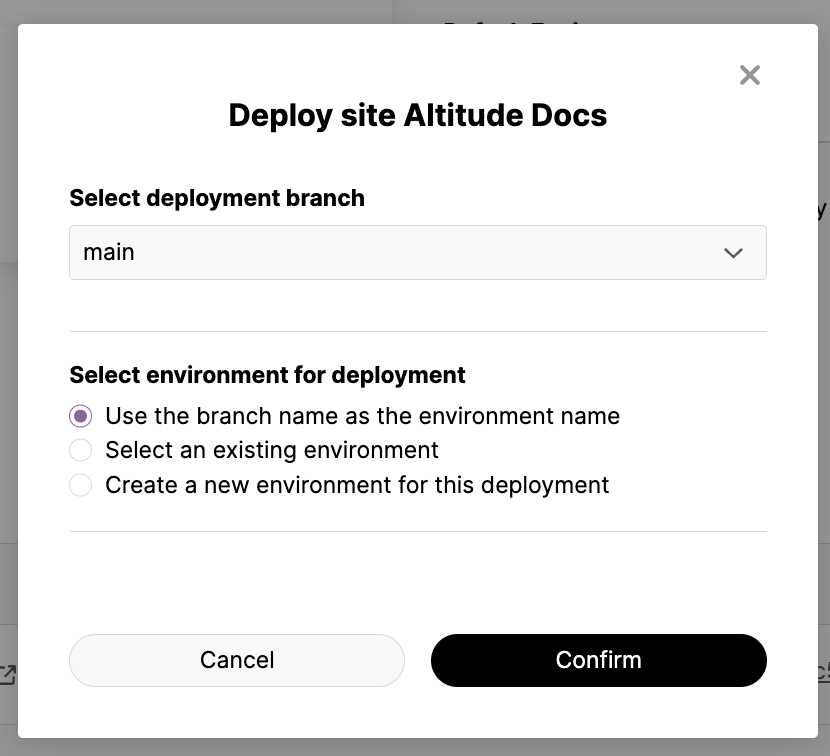
Every time you deploy from a new source code branch, a new site environment will be created. Deploying from a branch which has already been deployed previously will update the existing environment that corresponds to the branch.
Deploying a site to an existing environment
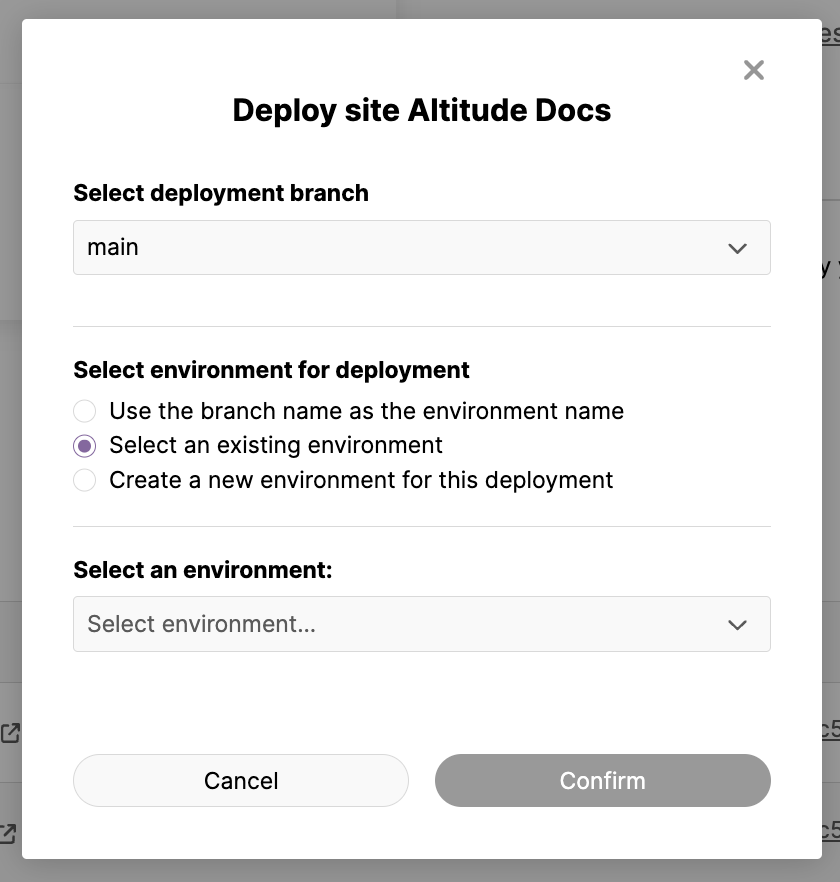
By selecting an existing environment to deploy to from the drop down selection, the deployment will cause the existing environment to be updated.
Deploying a site to a custom environment
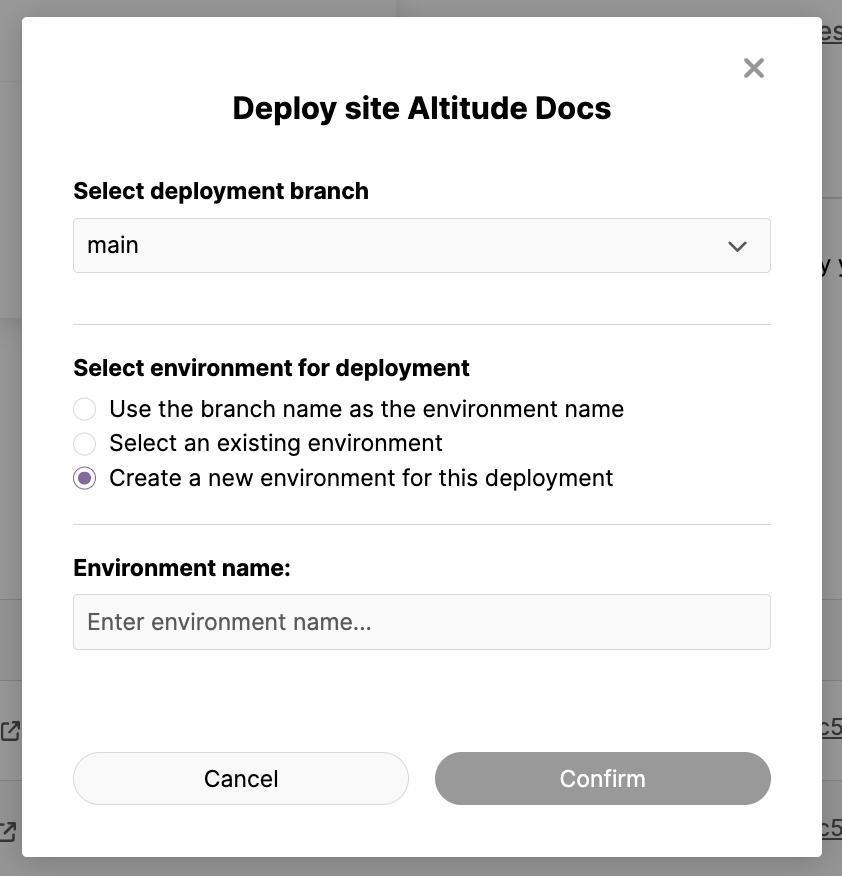
In this final pathway, you can type a custom environment name in the input field. On deployment, this new environment will be created and the site will be deployed to it.
Redeploying the last successful deployment
If your last successful deployment failed or was cancelled, you will have the option to redeploy the last successful redeployment. In this case, it needs to be noted that the most recent environment variables and domains will be used.

Managing site deployments
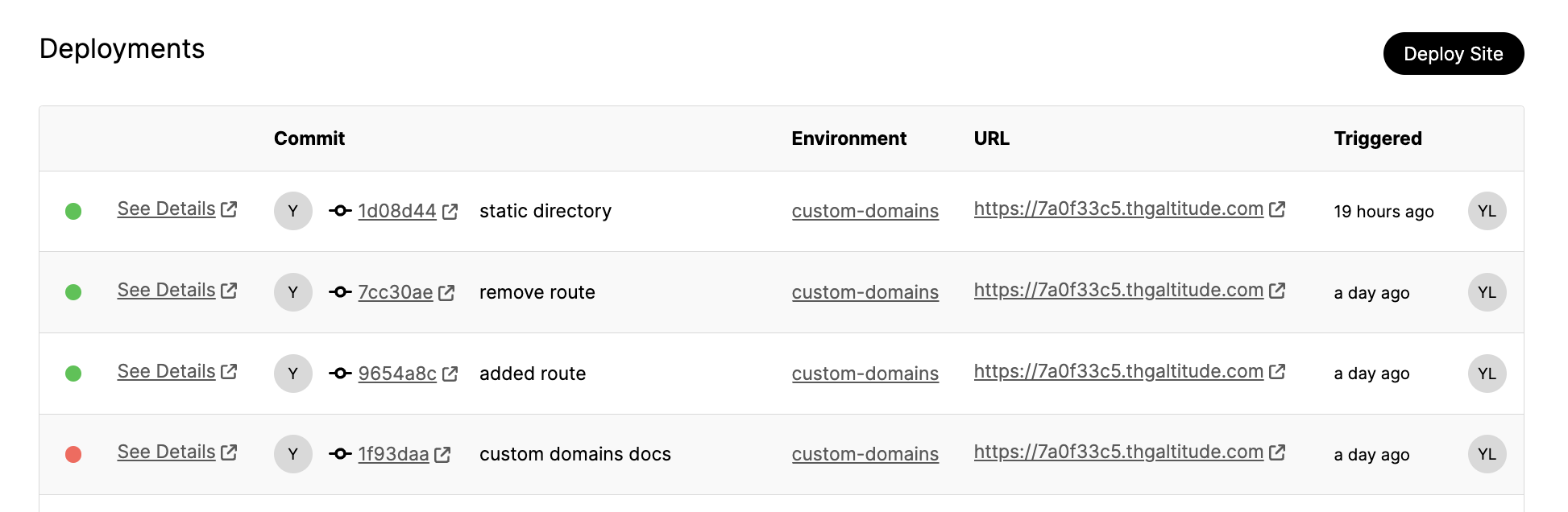
You can find a table containing the site deployments for a site in its individual site page. The table contains information regarding the deployment. Including the commit information, the deployment environment, and deployment url.
By clicking on the ‘See Details’ link you will be able to find details of the individual deployment and the build logs for that deployment.
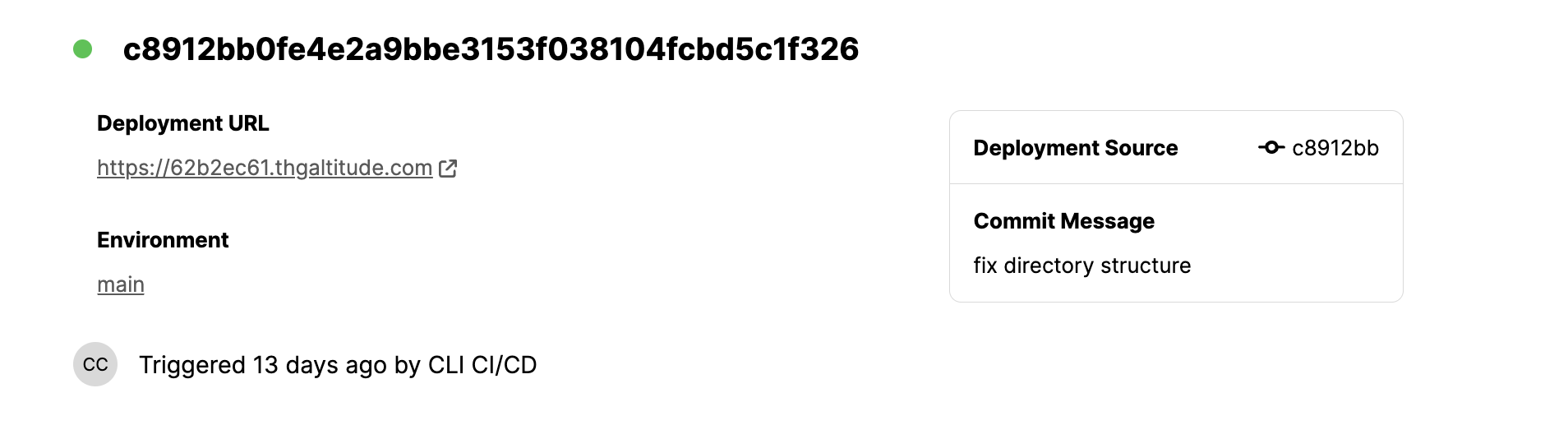
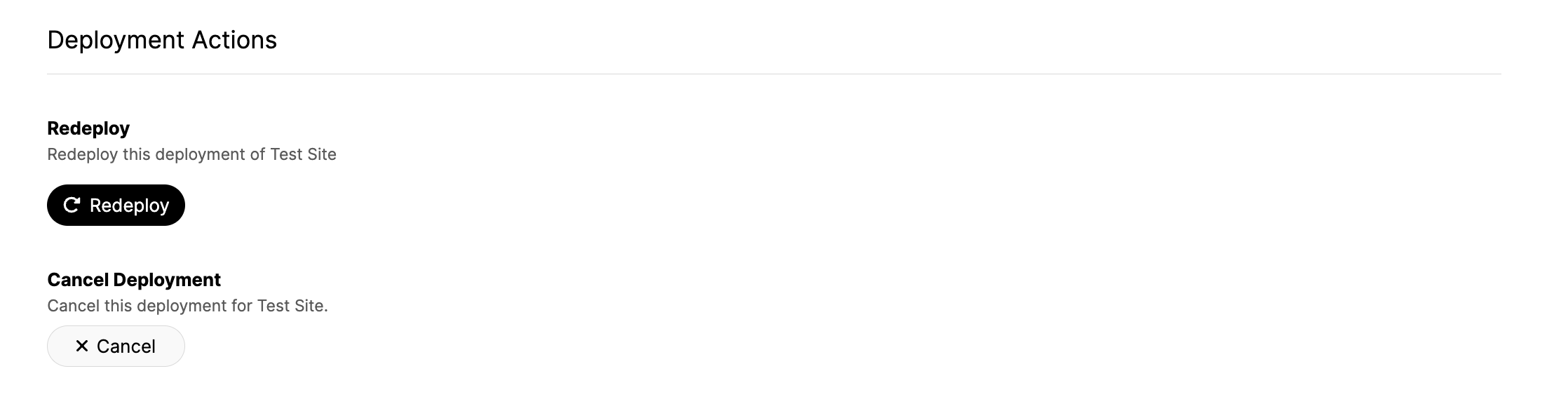
In this page, you can also manage the deployment. If the deployment is ongoing or requested, you are able to request a cancellation. You are also able to request a redeployment. This allows you to rollback to previous commits. However, in the case of redeployments your current domains and environment variables will be used.
Finally, you can also find the build logs for the individual functions that make up your site.

Environments
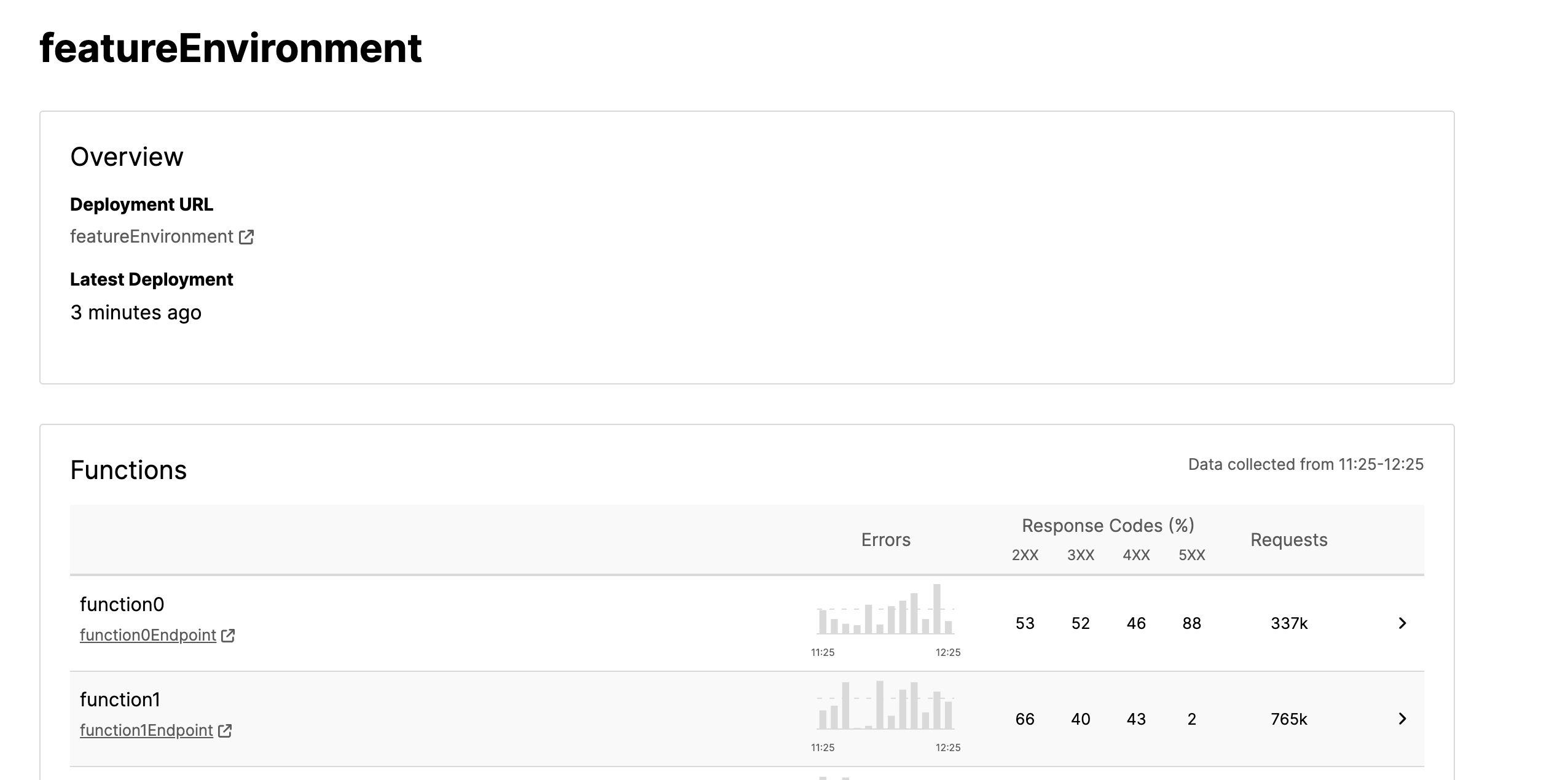
An environment belongs to a site and relates to a branch from the source repository for your site. By default, your production environment will be related to the main branch in your source code repository.
Each environment has a unique URL, which can be shared and used to test new site features before they move into production.
Environment Variables
Environment variables are required in order to deploy your site. An example of this could be the credentials to the Hygraph project connected to your site.
Environment variables can be global (applies to all environments within a site) or environment specific. Setting a value for an environment specific variable will override the global variable in the deployment environment, if a global variable with the same name exists. They can be configured using the “Variables” tab in an individual site.
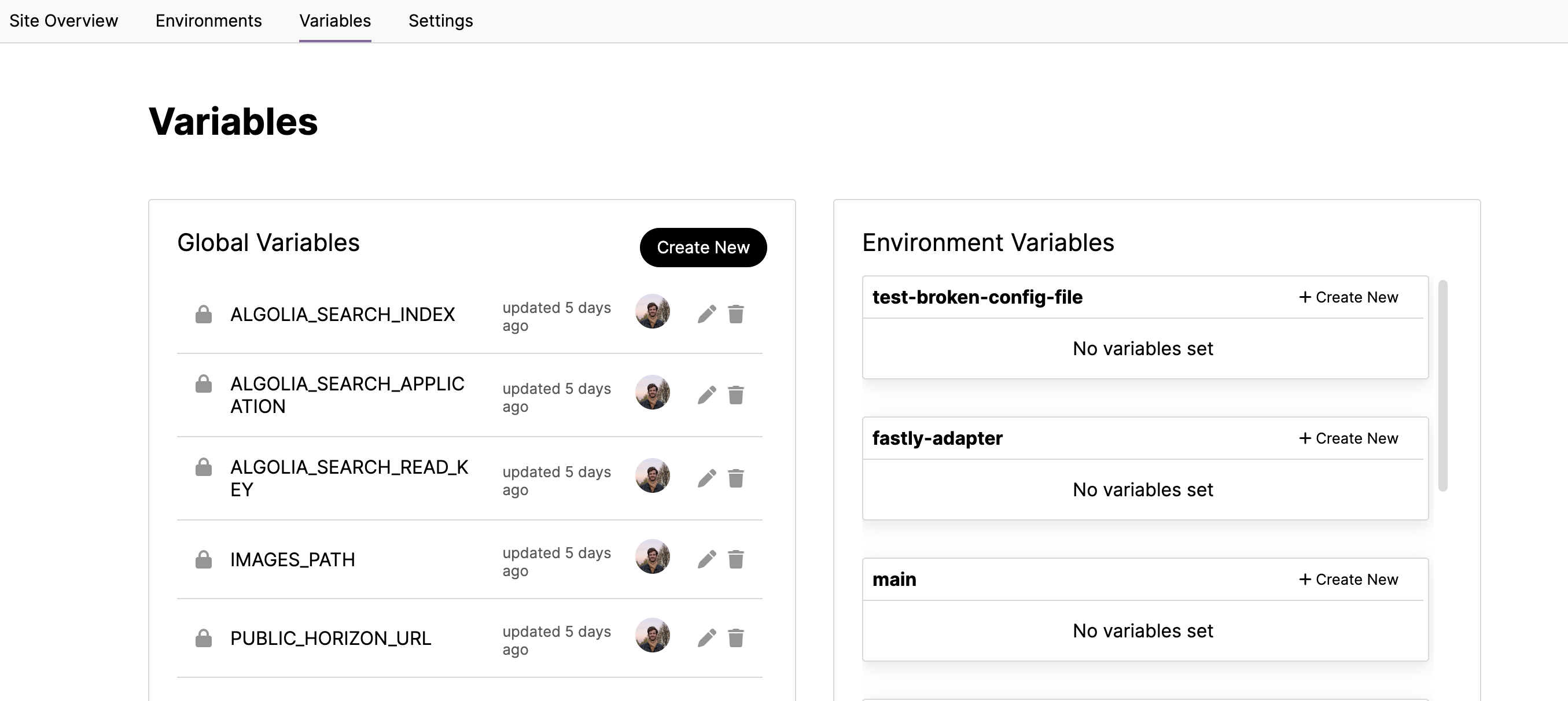
Please note that once created you will only be able to update or delete an environment variable, you will not be able to see its value.
Functions
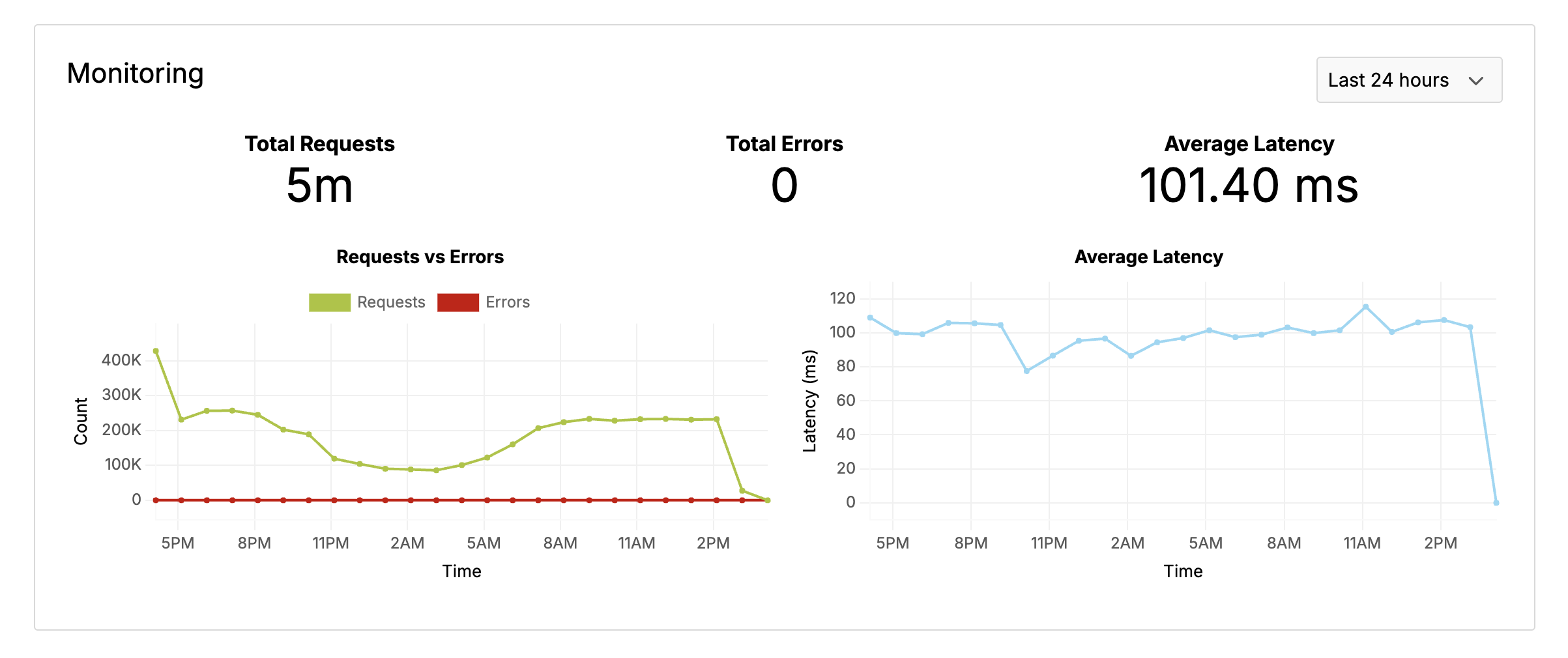
Each environment has functions, which make up the deployed version of the site. You can see the logs and metrics for an individual function by clicking on it from the list on the environment page.
Function Logs
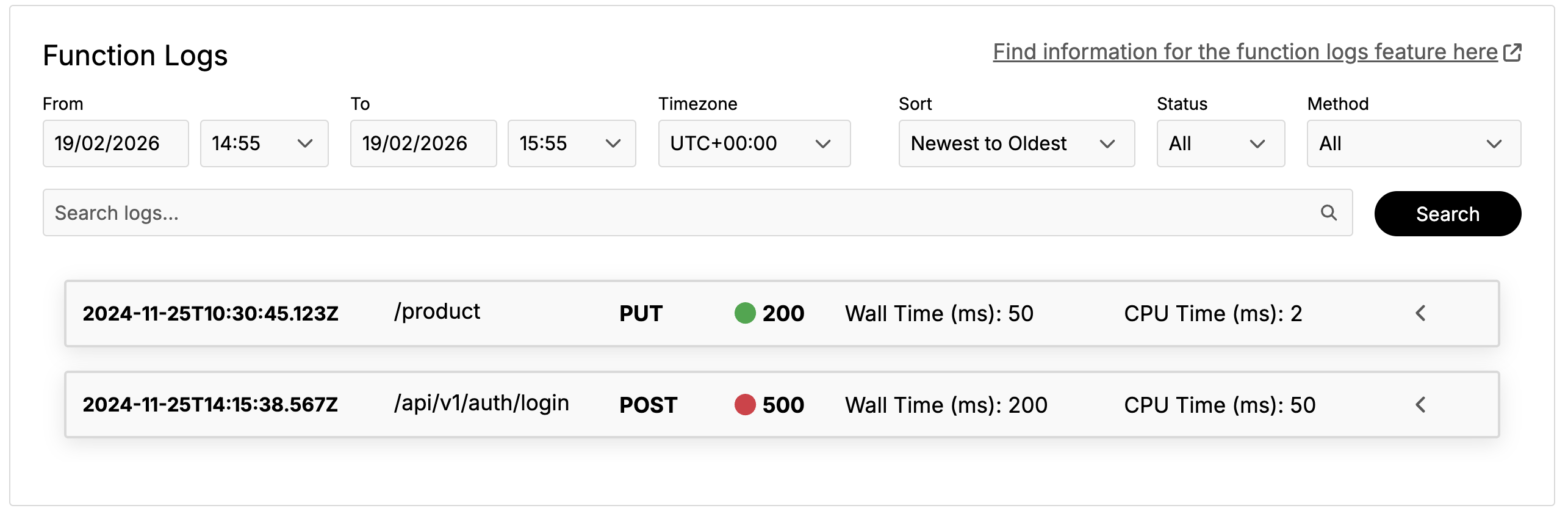
On Altitude you can search for the logs associated to each of your functions. These logs are grouped by request giving information on the path, HTTP Method, status code type, wall time and CPU time associated to each request.
Filtering Function Logs
Users can filter by the following:
- Date and time of a request, with the option to change the timezone with the option to sort from most recent to furthest back in time.
- HTTP Method such as GET, POST, PUT and DELETE,
- Status code types: 2XX, 3XX, 4XX and 5XX
Searching Function Logs,
The search bar allows users to query the logs for a given piece of text. This query searches for a match for the following.
- The request Id of the request
- A piece of text in a log message
- If the string is part of a request path
Updating Source Code Repository
You can update the source code repository for a site in the site settings. You will be asked to connect to a git provider and select the repository that you would like to re-connect the site to.
Basic Auth
If you wish to add basic auth to your site, you can do so from the site’s settings page under Basic Auth. This will apply to future deployments from the point of enabling basic auth, existing deployments will remain unchanged.
Activity
You can view activity from within an organisation using the “Activity” tab in the navigation bar. Here you can filter for site, team or user related activities, you will only be able to see activity for sites that you are able to access.